
📦 Inventory #
Master inventory management in Bake Boost. This guide explains how to track products, ingredients, and supplies, update stock quantities, manage expiry dates, and keep recipe costing and orders accurate.
The Inventory module in Bake Boost helps bakers track, manage, and update stock levels across Products, Ingredients, and Supplies – all from a single, centralized place.
This ensures accurate stock visibility, prevents shortages, and keeps costing and order fulfillment aligned with real inventory levels.
The Inventory module is divided into three tabs:
- Products
- Ingredients
- Supplies
Each tab is designed to manage stock according to how items are actually used in a bakery.
Learn about how to create and manage Products in the Bake Boost
🧭 Inventory Navigation #
From the left menu, go to:
Products & Inventory → Inventory
At the top of the Inventory page, use the tabs to switch between:
- Products Inventory
- Ingredients Inventory
- Supplies Inventory
Each tab has its own search, filters, and update actions.
🧁 Products Inventory #
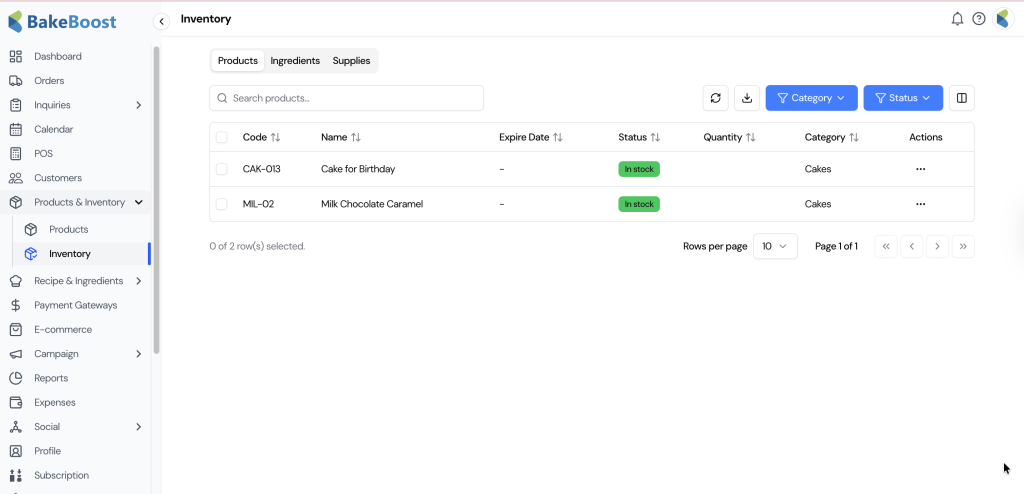
The Products tab displays inventory for finished or sellable products.
What You See in Products Inventory #
Each row shows:
- Product Code – SKU or internal code
- Product Name – Name of the finished product
- Expire Date – Optional expiry date (if set)
- Status – In stock / Out of stock
- Quantity – Available stock count
- Category – Product category (e.g., Cakes)
- Actions – Options to update inventory
You can:
- Search products using the search bar
- Filter by Category and Status
🔄 Updating Product Inventory #
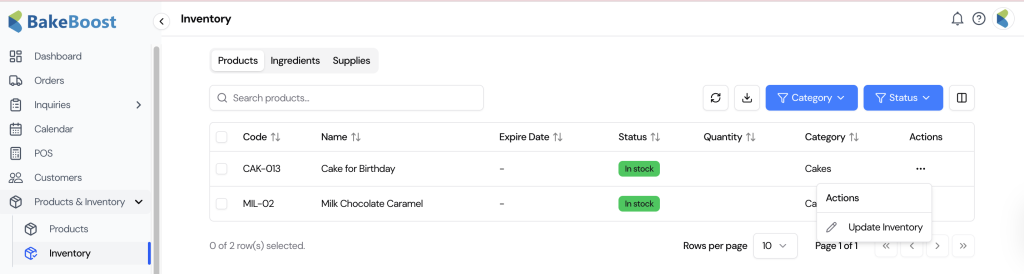
To update a product’s inventory:
- Click the three-dot menu (Actions) for a product
- Select Update Inventory
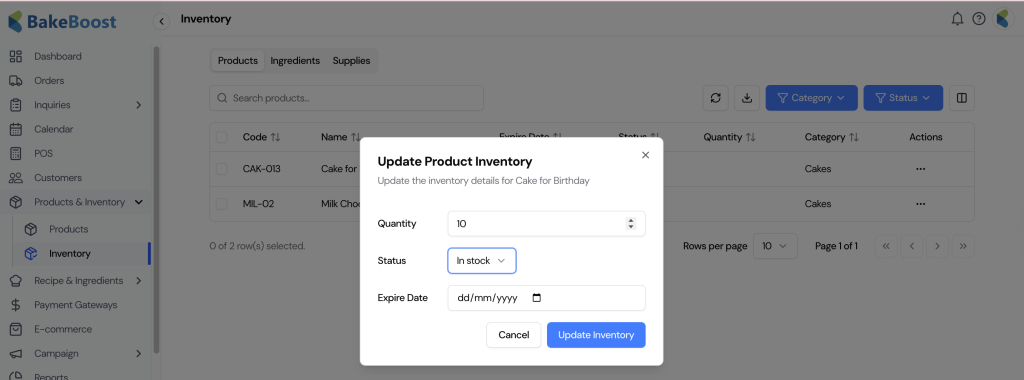
- A popup appears with:
- Quantity – Enter available units
- Status – Select In stock or Out of stock
- Expire Date – Optional (for perishable items)
- Click Update Inventory
The product stock is updated instantly across POS, orders, and reports.
🧂 Ingredients Inventory #
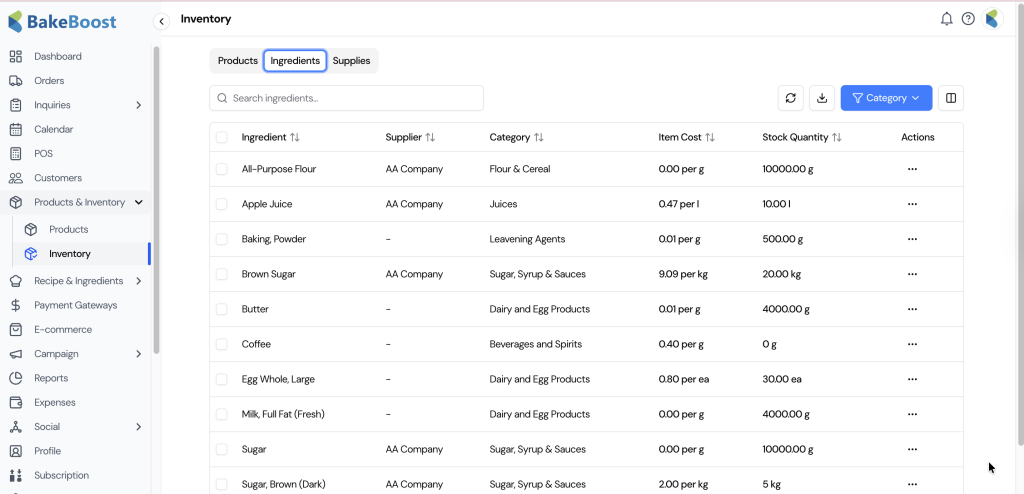
The Ingredients tab tracks raw materials used in recipes, such as flour, sugar, butter, milk, etc.
What You See in Ingredients Inventory #
Each row shows:
- Ingredient Name
- Supplier (if assigned)
- Category (e.g., Flour & Cereal, Dairy & Egg Products)
- Item Cost – Cost per unit (e.g., per g, kg, l)
- Stock Quantity – Available quantity with unit
- Actions – Update options
You can:
- Search ingredients by name
- Filter by ingredient category
🔄 Updating Ingredient Inventory #
To update ingredient stock:
- Click the Actions (⋯) menu for an ingredient
- Select Update Inventory
- A popup appears showing:
- Stock Quantity – Enter updated quantity
- Measurement – Displayed automatically (e.g., g, kg, l)
- Click Update Inventory
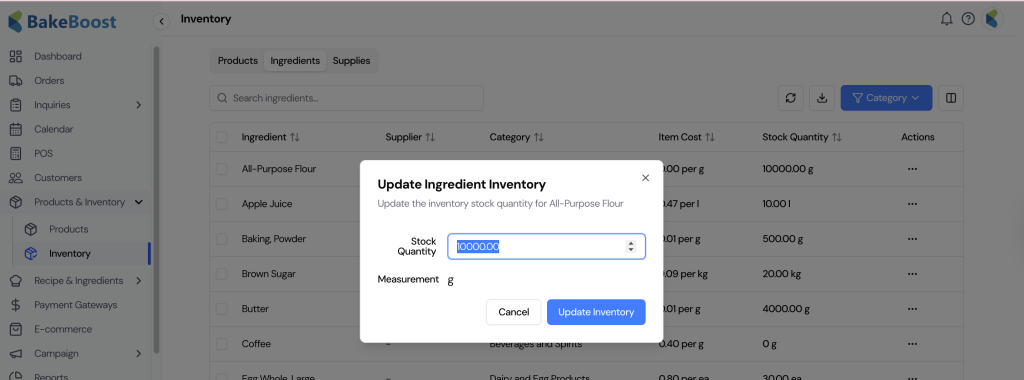
Bake Boost immediately reflects updated quantities in:
- Recipe costing
- Order calculations
- Inventory usage tracking
📦 Supplies Inventory #
The Supplies tab is used to manage non-edible items such as boxes, boards, ribbons, pans, edible paper, and cleaning materials.
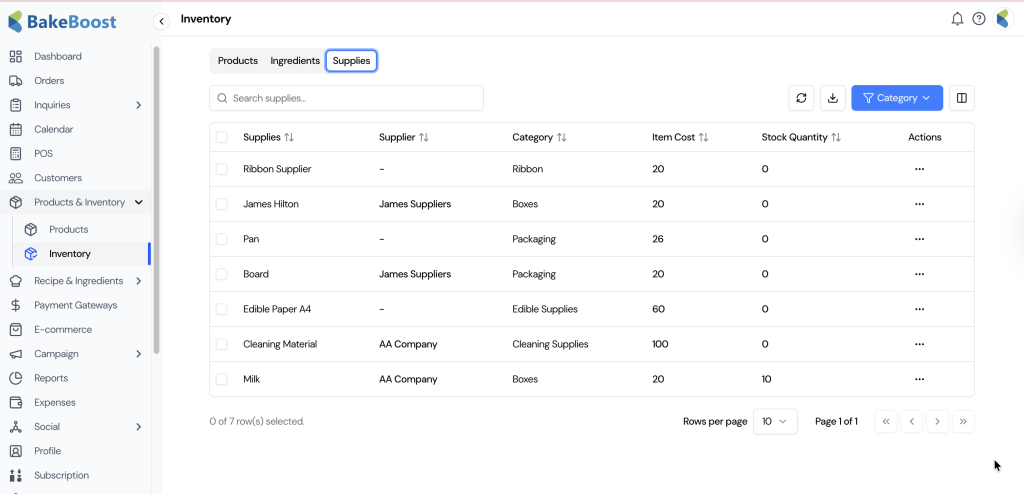
What You See in Supplies Inventory #
Each row includes:
- Supply Name
- Supplier
- Category (Packaging, Boxes, Cleaning Supplies, etc.)
- Item Cost
- Stock Quantity
- Actions
This allows bakers to track operational items that impact production and order fulfillment.
🔄 Updating Supplies Inventory #
To update supplies stock:
- Click the Actions (⋯) menu for a supply item
- Select Update Inventory
- A popup appears with:
- Stock Quantity – Enter available units
- Measurement – Displayed (units, pcs, etc.)
- Click Update Inventory
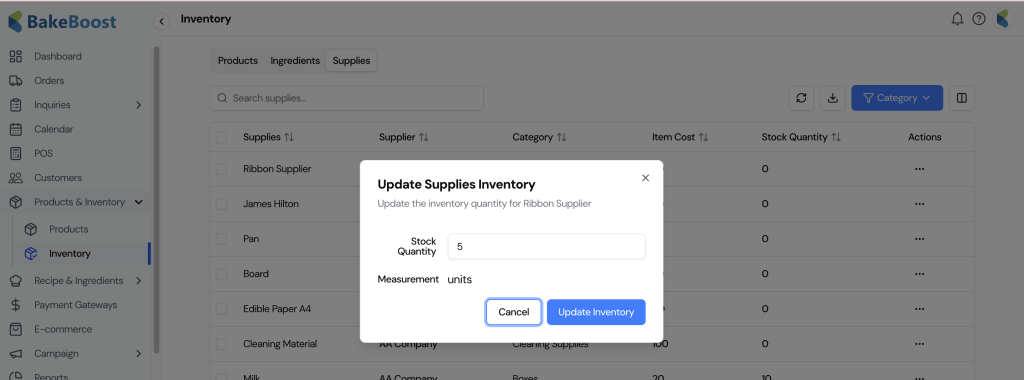
Supplies inventory is automatically linked with:
- Recipe Products
- Composite Products
- Orders that consume supplies
🔁 How Inventory Connects Across Bake Boost #
Inventory updates are reflected across the platform:
- Orders – Prevents overselling
- Recipes – Accurate cost calculations
- Products – Real-time stock status
- POS & E-commerce – Availability control
- Reports – Inventory usage and valuation
This ensures every update supports smarter decisions and accurate costing.
💡 Best Practices #
- Update ingredients inventory whenever new stock arrives
- Track supplies inventory to avoid last-minute shortages
- Use expiry dates for perishable products
- Review inventory regularly to keep recipe costs accurate
✅ Summary #
The Inventory module in Bake Boost provides:
- Centralized stock management
- Separate tracking for products, ingredients, and supplies
- Real-time updates across orders and pricing
- Better control over production and profitability
Learn about how to create and manage Products in the Bake Boost


