
Here’s the user guide content for the Profile Page in Bake Boost
👤 Profile #
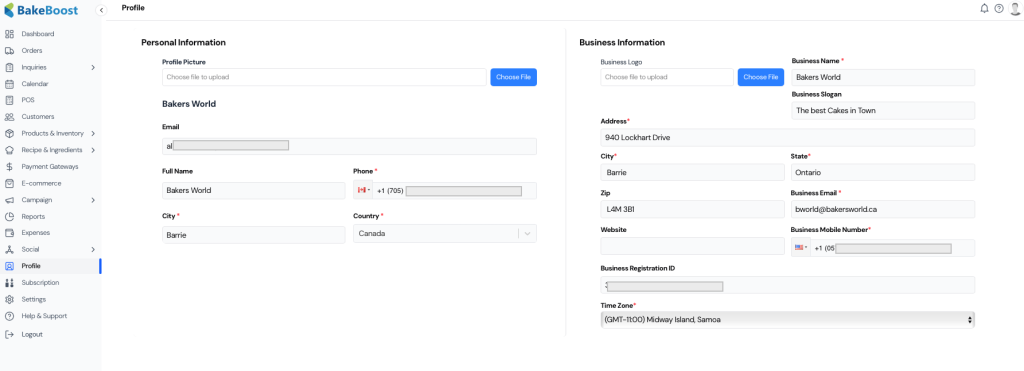
The Profile section in Bake Boost allows bakery owners and administrators to manage both personal and business information in one place.
It ensures all contact, branding, and registration details are accurate and visible across your Bake Boost account — from invoices to emails and order receipts.
Keeping this information updated ensures a consistent and professional presence for your bakery across the platform.
🧁 Personal Information #
This section helps identify the bakery owner or primary account holder.
You can upload a profile picture and update essential personal details.
Fields include:
- Profile Picture: Upload an image for your personal Bake Boost profile.
- Email: The main login and contact email associated with your Bake Boost account.
- Full Name: The name of the bakery owner or account representative.
- Phone: Primary contact number for personal or direct communication.
- City: The city where you are based. (Required)
- Country: The country of operation. (Required)
🏢 Business Information #
The Business Information section holds all key details about your bakery or baking business.
These details are used across the system for invoices, receipts, and communication templates.
Fields include:
- Business Logo: Upload your bakery’s logo to display on invoices, reports, and marketing templates.
- Business Name: Official name of your bakery. (Required)
- Business Slogan: Optional tagline or slogan to describe your brand (e.g., “The Best Cakes in Town”).
- Address: Physical address of your bakery. (Required)
- City / State / Zip: Complete location information for correspondence and delivery coordination.
- Business Email: Dedicated business email for clients and communications. (Required)
- Business Mobile Number: Main contact number for customers to reach your bakery. (Required)
- Website: Link to your bakery’s website or social page. (Optional)
- Business Registration ID: Your business license or registration number for official documentation.
- Time Zone: Select the appropriate time zone to ensure order timings and reports display accurately.
💾 Saving Your Profile #
Once all details are filled or updated:
- Review the information for accuracy.
- Click Save at the bottom right corner of the page.
Your profile and business information will be updated instantly and reflected across your Bake Boost account, including invoices, order summaries, and customer communications.
💡 Tip: #
Keep your business email, phone number, and address up-to-date.
Any changes made here automatically synchronize across Bake Boost modules — ensuring customers always see your latest contact and branding details.


